
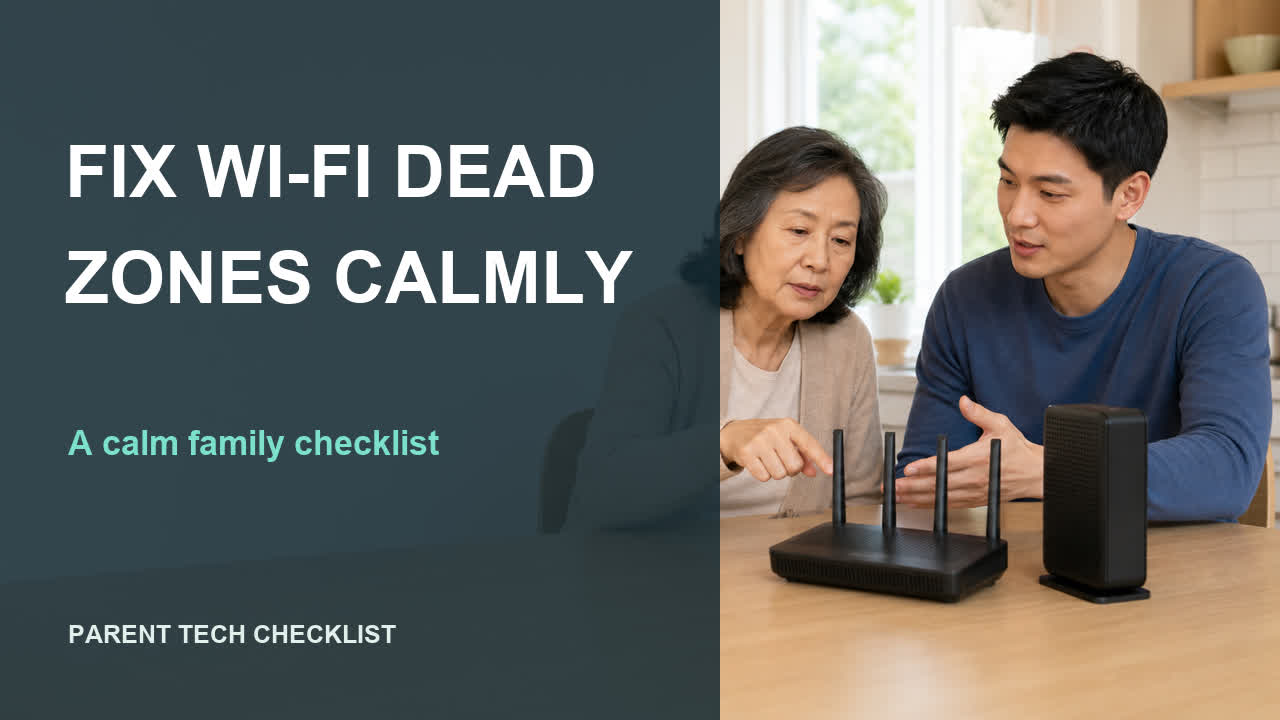
The family question
Where does the connection fail in the rooms a parent actually uses? Map weak Wi-Fi areas before buying or resetting equipment. This guide is for a household where calls and video fail only in rooms the parent uses. For Fix Wi-Fi Dead Zones Calmly, the goal is one repeatable task the account owner understands, not a broad device overhaul.
Before you begin
Choose the same phone, same app and three normal locations for a repeatable signal test. Before changing anything for Fix Wi-Fi Dead Zones Calmly, agree on the exact result and keep a working contact method available in case the task needs to pause.
Three safe steps
1. Test the rooms used every day.
Begin with the parent beside you and test the rooms used every day. For fix wi-fi dead zones calmly, record the room, time and whether ordinary calling or video worked; keep passwords, recovery codes and private answers off the worksheet. The checkpoint is simple: the family can identify a location pattern before buying equipment.
2. Record where calls or video fail.
Next, record where calls or video fail. For fix wi-fi dead zones calmly, compare what appears on the device with the official guidance below, not with instructions from an incoming message or caller. Stop changing settings if the whole service is down or the official ISP status reports an incident.
3. Move one device and test again.
Finish by move one device and test again. Ask the parent to repeat the result without coaching, then add the date beside the room, time and whether ordinary calling or video worked. If the fix wi-fi dead zones calmly task cannot be repeated, return to the last working state and use the official support route.
If it does not go as expected
Stop changing settings if the whole service is down or the official ISP status reports an incident. While working on Fix Wi-Fi Dead Zones Calmly, a warning, unfamiliar login screen or unexpected request for private information is a reason to pause, document what is visible and return through an official support page.
Make the family handoff clear
Write down the room, time and whether ordinary calling or video worked and the name of the approved helper. The Fix Wi-Fi Dead Zones Calmly handoff is complete only when the family can identify a location pattern before buying equipment. Review this topic note after a relevant device, account or caregiver change.
If you later compare equipment
Map the dead zones first. If you later consider equipment, compare the coverage you need and the complexity of setting it up.
TP-Link AC1200 WiFi Extender (RE315) · Amazon eero 6+ mesh Wi-Fi 6 router, 1-pack · Compare Wi-Fi extenders on Amazon · Compare mesh Wi-Fi systems on Amazon
Affiliate disclosure: As an Amazon Associate I earn from qualifying purchases. Amazon links on this page may earn a commission at no extra cost to you.
Printable family checklist
- Where does the connection fail in the rooms a parent actually uses?
- Test the rooms used every day.
- Record where calls or video fail.
- Move one device and test again.
- We recorded the room, time and whether ordinary calling or video worked.
- The account owner understood every change.
- We tested one normal task after the change.
Common questions
Where does the connection fail in the rooms a parent actually uses?
Map weak Wi-Fi areas before buying or resetting equipment.
What should you do before you begin?
Choose the same phone, same app and three normal locations for a repeatable signal test.
What if it does not go as expected?
Stop changing settings if the whole service is down or the official ISP status reports an incident.
Official sources
Product screens change. For Fix Wi-Fi Dead Zones Calmly, open these primary sources directly and verify that the instructions still match the device before acting.
- FTC: Secure Your Home Wi-FiPrimary guidance used to review Fix Wi-Fi Dead Zones Calmly.
- NIST Consumer IoT CybersecurityPrimary guidance used to review Fix Wi-Fi Dead Zones Calmly.
Related guides
Safety boundary
This Fix Wi-Fi Dead Zones Calmly checklist is general technology education for families, not medical, legal, financial, security or emergency advice. If an active outage, recall, scam notice or security advisory affects this topic, use the current official source and follow its stated instructions.